USB OTG Camera
- 0.0
- Rating
- 10.00K
- Installs
- Free
- Price
 Analysis by App-foxy
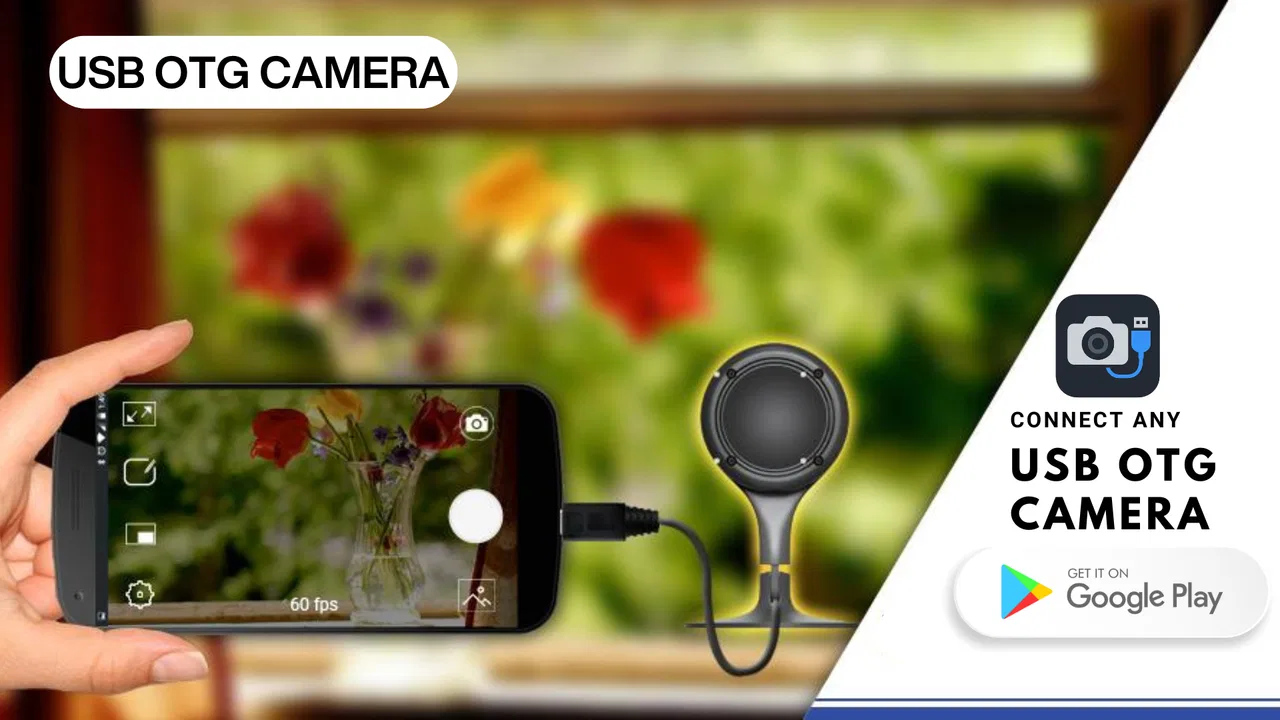
I tested USB OTG Camera as a practical Android utility for connecting a compatible inspection camera to a phone or tablet. Its purpose is straightforward: use the mobile device as a screen for a USB camera rather than carrying a separate monitor. That simplicity is the main appeal, but it also means the quality of the experience depends heavily on the camera, adapter, Android device, and the situation in which you use it.
Developed by Boss Inc, this free app sits in the libraries and demonstration area of the store rather than competing with full photo-editing or security-camera platforms. The listing describes it as a way to turn an Android device into an inspection USB OTG camera, and that is the right way to approach it. I would not install it expecting a complete surveillance system or a replacement for a professional inspection kit. I would install it when I already have a suitable USB camera and need a convenient mobile viewing solution.
The app is available to Everyone and requires Android 8.0 or later. It has reached over ten thousand installs, while its current version is 4.0. The displayed average rating is 0.0, so I would treat the app as a focused utility to evaluate with your own hardware rather than choosing it because of a mature review history. In my experience, this kind of tool is judged less by its appearance than by whether it recognizes the connected camera when you need it.
You May Also Like

 Blood Strike: 2.5 Anniversary
Blood Strike’s Loadouts Turn Every Drop Into a Tactical Gamble
A close look at Blood Strike’s custom loadouts: how fast access to signature weapons reshapes its battle royale rhythm, rewards preparation, and narrows the gap between fights.

 Pandora - Music & Podcasts
Pandora’s Music Is Easy to Start, but Harder to Recover
Pandora’s strength is its low-effort path from a seed to a station. Its weak spot is how much confidence it asks you to place in connection, setup, and quiet recovery.

 8 Ball Pool
 Is Built on Rivalries, Rematches, and Routine
A close look at the rivalries, rematches, shared routines, and unanswered safety questions that turn a quick pool match into a persistent mobile community.

 Samsung Music
’s Quiet Strength Is Playing What You Already Own
Its reach comes less from spectacle than from dependable access to a personal library. That simplicity is both the app’s strongest retention engine and its ceiling.

 AccuWeather: Weather Radar
AccuWeather Review: A Quick, Clear Forecast for Everyday Decisions
For everyday plans, the best forecast is the one you can understand quickly. AccuWeather makes rain timing, radar, and local conditions easy to act on, with a few trade-offs.

 Hill Climb Racing
Why Hill Climb Racing Still Turns Crashes Into One More Run
A tiny car, a bumpy hill and one more upgrade: Hill Climb Racing keeps resurfacing because its simple chaos makes every near-miss feel personal.
More From Our News Desk
View All News


How USB OTG Camera fits into real mobile inspection
I look at mobile inspection as a chain: a compatible USB camera feeds a view to an Android device, and that view helps me decide what to do next. The useful question is not just whether the app opens, but whether the whole setup fits the task and can be handled comfortably. From there, I consider how the image and the inspection itself move into the next step.
The connection is the experience
With this app, the most important moment happens before the camera image appears. You need an Android device that supports USB OTG, a compatible inspection camera, and the correct physical connection between them. A phone may be powerful enough to run the app but still be awkward for the job if its port, adapter, or camera combination does not cooperate. That makes the app feel different from ordinary camera software: the phone is only one part of the system.
I recommend preparing the setup before entering a cramped space or starting a repair. Connect the camera while you are still somewhere with good lighting, check that the cable reaches comfortably, and make sure the phone is not about to run out of battery. This simple routine avoids a common mistake: discovering a connection problem only after the camera has disappeared behind furniture, inside a vehicle panel, or near a hard-to-reach pipe.
The app is most useful when the phone provides a clearer or more flexible display than the small screen built into a low-cost inspection camera. A larger phone can make it easier to guide the probe, compare what you are seeing with the surrounding area, and show the image to another person. It also reduces the need to hold a separate monitor while working.
That convenience should not be confused with universal compatibility. USB cameras vary in how they deliver their video, and Android devices vary in how they handle attached hardware. If your camera is designed for a dedicated monitor or uses a connection standard your phone does not recognize, installing this app alone will not solve the mismatch. I see the app as the viewing layer in a hardware chain, not as a magic adapter.
Where network access matters less than physical access
An inspection camera is often used in places where network connectivity is unreliable or irrelevant: under a sink, behind a cabinet, inside an engine bay, or in a workshop with poor reception. The useful image comes from the wired camera connection, so the central task is keeping the physical link stable while you move. I would avoid treating the app like a cloud camera platform, because its value is tied to the attached USB device rather than remote viewing.
That distinction changes how I plan a job. I do not begin by asking whether the phone has a strong signal. I begin by asking whether the cable is long enough, whether the connector can stay firmly seated, and whether I can see the screen without bending the phone into an unsafe position. If you are inspecting a difficult area, a small phone stand or a second person holding the display may be more useful than any network feature.
There are still connected moments around the app. You may need internet access to obtain the application, check for a newer release, or look up the specifications of an unfamiliar camera and adapter. Those are preparation tasks, not the inspection itself. For a reader deciding whether this belongs in a toolkit, that is an important difference: the app is designed around a local accessory connection, while troubleshooting and setup may require outside information.
A realistic everyday scenario
Imagine hearing a rattling sound behind a kitchen cabinet. Instead of removing every panel immediately, I would connect a compatible inspection camera, open the app, and guide the probe through an accessible gap. The phone screen gives me a live view while I move slowly, and I can reposition the cable when the angle is poor. If I find the source, I can decide whether the cabinet needs to be opened or whether the obstruction is reachable from another direction.
This is where the app makes practical sense. It can turn a phone that is already in my pocket into the display for a tool I might otherwise use only occasionally. The benefit is not advanced analysis; it is reducing the amount of equipment needed for a quick look. The same approach can help with checking a narrow vehicle space, examining a drain opening, or looking behind a heavy appliance before moving it.
For delicate work, however, I would keep expectations modest. A live view helps me see, but it does not automatically identify damage, measure a gap, illuminate a dark area, or guide the probe. Those jobs still depend on the camera’s own light, lens, cable control, and image quality. The app can make the view available on Android, but it cannot upgrade an inexpensive camera into a professional diagnostic instrument.
Handling connection failures without wasting time
The most frustrating part of this category is a blank or missing camera view. When that happens, I use a deliberate recovery order instead of repeatedly tapping the screen. First, I check the physical connection and reseat the adapter. Then I confirm that the camera is receiving power and that the phone has not loosened its grip on the connector. After that, I close and reopen the app, reconnect the camera, and test again.
This order matters because a software restart cannot repair a loose cable, and a perfect cable connection cannot help if the camera is incompatible. I also try the setup without a hub or unnecessary extension when possible. Every extra connection adds another point where power or data can fail, especially in a mobile workspace where the phone and probe are being moved together.
If the app works at a desk but fails during an inspection, I look for movement-related causes. The cable may be pulling sideways on the phone port, the adapter may be too bulky to sit securely, or the probe may be twisting the connector as it enters a tight space. I prefer to support the cable near the phone and leave enough slack near the inspection area. That small change often prevents accidental disconnection.
A second useful recovery habit is to test the camera with the same phone before leaving for the job. If the setup is new, test it with the exact adapter and cable you plan to carry. A camera that works with one Android device is not automatically guaranteed to work with another. This is not a criticism unique to USB OTG Camera; it is the unavoidable trade-off of using general-purpose mobile hardware for accessory inspection.
I would also avoid making the app responsible for an important safety decision. If the camera view drops while checking a hazardous or inaccessible location, stop moving the probe until the image returns. Continuing blindly can snag the cable, damage the camera, or make retrieval harder. The app is a visual aid, not a substitute for safe working practices.
Battery, storage, and data-conscious use
Because the camera is connected physically, I think about battery in a different way from a normal online video app. The phone is powering its own display and handling the attached accessory, while the camera may also draw power through the connection. Long inspections can therefore be more demanding than simply reading messages or browsing a web page. I start with a well-charged phone and avoid beginning a job with a nearly empty battery.
I also keep the screen brightness practical rather than automatically using the highest setting. A bright display can help in a workshop or outdoors, but maximum brightness is not always necessary in a dark inspection space and can shorten the useful session. If the image is difficult to see, I first improve the phone’s position and the camera’s lighting before assuming the display must be brighter.
Storage is another point worth considering when using any camera-viewing tool. If you need a record of what you saw, decide in advance how you will preserve it, rather than assuming that every live preview app offers the same capture workflow as the standard camera. I would not build an inspection report around an untested recording process. For a casual check, a written note about the location and finding may be more dependable than trying to document everything while also controlling the probe.
Network data is not the main resource involved in the inspection itself. The more important resources are battery, physical connection quality, screen visibility, and the operator’s attention. That is good news for people working in basements, garages, or remote areas, but it also means that a mobile data plan cannot rescue a poor cable or an unsupported camera. Connectivity here is primarily about USB reliability, not signal strength.
Privacy-conscious users may also prefer this kind of direct accessory workflow when they are examining personal spaces or equipment. I still handle the phone carefully, especially if other applications are open, and I avoid showing sensitive surroundings to bystanders when the inspection is taking place in a private area. The app’s role is narrow, which can be an advantage: I use it as a viewing tool rather than building an elaborate account-based camera setup around a simple task.
Who should use it, and who should choose another option?
I think USB OTG Camera is a good fit for someone who already owns a compatible USB inspection camera and wants to use an Android phone as its screen. It also suits hobbyists, home maintenance users, students demonstrating small hardware projects, and technicians who need a lightweight way to inspect a hard-to-see area. The free price makes experimenting less risky, provided the camera and phone are already suitable.
I would be more cautious about recommending it to someone who expects a polished, all-in-one product. If you need guaranteed compatibility, integrated lighting controls, dependable recording, measurement tools, image enhancement, or a rugged monitor designed for field work, a dedicated inspection camera kit may be the better purchase. That option usually costs more, but the hardware and display are selected to work together instead of relying on several separate parts.
It is also not the right choice if your goal is remote monitoring over a network. A conventional security-camera app, network camera system, or manufacturer-specific platform is more appropriate when you need access from another location, alerts, multiple cameras, or a persistent installation. USB OTG Camera is better understood as a close-range inspection companion than as a home surveillance solution.
Compared with the ordinary Android camera app, its advantage is the ability to work with an external inspection camera rather than only the phone’s built-in lens. Compared with specialized inspection software, its advantage is simplicity and a lower barrier to trying an existing USB accessory. The trade-off is that it may offer less control and fewer professional tools. I prefer the app when the job is “show me what is inside this narrow space,” not when the job is “produce a complete technical record.”
What I would check before downloading
Before installing, I would identify the phone model, confirm that it runs Android 8.0 or later, and check whether it supports USB OTG. I would then inspect the camera connector and determine which adapter is needed. These checks are more valuable than choosing based on the app’s category, because the usefulness of the installation depends on the entire connection path.
I would also think about how I plan to hold everything. A phone lying flat on a workbench is easy to see, but a phone dangling from a short cable is uncomfortable and vulnerable to being pulled down. If the inspection involves both hands, arrange a stable viewing position first. This is one of the less obvious trade-offs of turning a phone into a monitor: the screen is familiar, but the phone was not necessarily designed to be part of a probe assembly.
For a first test, use an easy target in a well-lit room. Confirm that the image appears, move the camera gently, and check whether the cable remains connected when the phone is repositioned. Only after that would I use the setup inside a wall cavity, engine compartment, or other place where retrieving the camera could be difficult. A five-minute bench test can prevent a much longer recovery effort.
I would also keep the app’s current version in mind when troubleshooting. If a problem appears after an update, repeat the connection test from the beginning instead of assuming the camera has failed. Conversely, if the app has not been used for a while, check that the phone still recognizes USB accessories normally. Separating phone, adapter, camera, and app problems is the fastest route to a useful answer.
My connectivity verdict
USB OTG Camera succeeds when its narrow purpose matches the job. It makes an Android phone useful as a viewing screen for a compatible inspection camera, and that can be genuinely convenient in homes, workshops, vehicles, and small technical projects. I like that the concept avoids unnecessary complexity: the phone is close to the work, the camera reaches the difficult space, and the connection is direct.
At the same time, the app cannot remove the practical limitations of USB accessories. Compatibility, power, cable strain, screen position, and battery level all shape the result. The lack of a strong visible rating history also means I would test it with my exact hardware before relying on it for important work. That is a sensible precaution, not a reason to dismiss a focused utility.
My recommendation is therefore specific. If you already have a suitable USB OTG inspection camera and an Android device running a supported system, this free app is worth trying as a lightweight mobile display. If you need remote access, advanced documentation, rugged reliability, or guaranteed hardware integration, spend your effort on a dedicated solution instead. The best reason to choose USB OTG Camera is not that it replaces every inspection tool, but that it can make an existing USB camera more useful when a phone is the most convenient screen.
After using it, I would keep the setup simple: test the connection before each important job, support the cable, protect the phone from drops and moisture, and treat the live image as guidance rather than a complete diagnosis. With those expectations, Boss Inc’s utility has a clear place in an Android toolkit. It is practical for quick visual checks, limited by the hardware around it, and most valuable when portability matters more than a long list of specialized controls.
FAQs for USB OTG Camera
01What is USB OTG Camera and how does it work?
USB OTG Camera is an application that allows users to connect external USB cameras to their Android devices using USB On-The-Go (OTG) technology. It enables users to view and record real-time footage from the connected camera directly on their smartphones or tablets, offering enhanced functionality for surveillance, inspection, or creative projects.
02Does USB OTG Camera require any special hardware or accessories?
Yes, to use USB OTG Camera, your Android device must support USB OTG. Additionally, you'll need a compatible USB OTG adapter to connect an external USB camera to your device. Ensure that your device is capable of powering the camera, or consider using a powered USB hub if additional power is required.
03Is USB OTG Camera compatible with all Android devices and cameras?
While USB OTG Camera is designed to work with most Android devices that support USB OTG, compatibility may vary based on the device model and Android version. Similarly, not all USB cameras are supported. It is advisable to check the app’s compatibility list or test with your specific device and camera before making a purchase.
04What are the main features of USB OTG Camera?
USB OTG Camera offers a range of features including real-time video streaming, recording, and snapshot capabilities. It supports full HD resolution (depending on the camera), various viewing modes, and adjustable settings for brightness, contrast, and orientation. Some versions may also offer motion detection and night vision support.
05Are there any privacy concerns with using USB OTG Camera?
As with any camera application, privacy is a concern. It is important to ensure that you are in compliance with local laws regarding surveillance and recording. Always inform others if you are recording in shared spaces. The app should also be downloaded from a trusted source to avoid security risks associated with unauthorized access to your camera.
Pros
- Easy to connect and use with OTG support.
- No additional drivers required.
- Compatible with various camera models.
- High-quality video streaming.
- Supports real-time recording.
Cons
- Limited to OTG-enabled devices.
- May drain battery quickly.
- Requires external storage for large files.
- Interface can be unintuitive.
- Some cameras may need additional settings.

USB OTG Camera
Gallery